
Review claimants
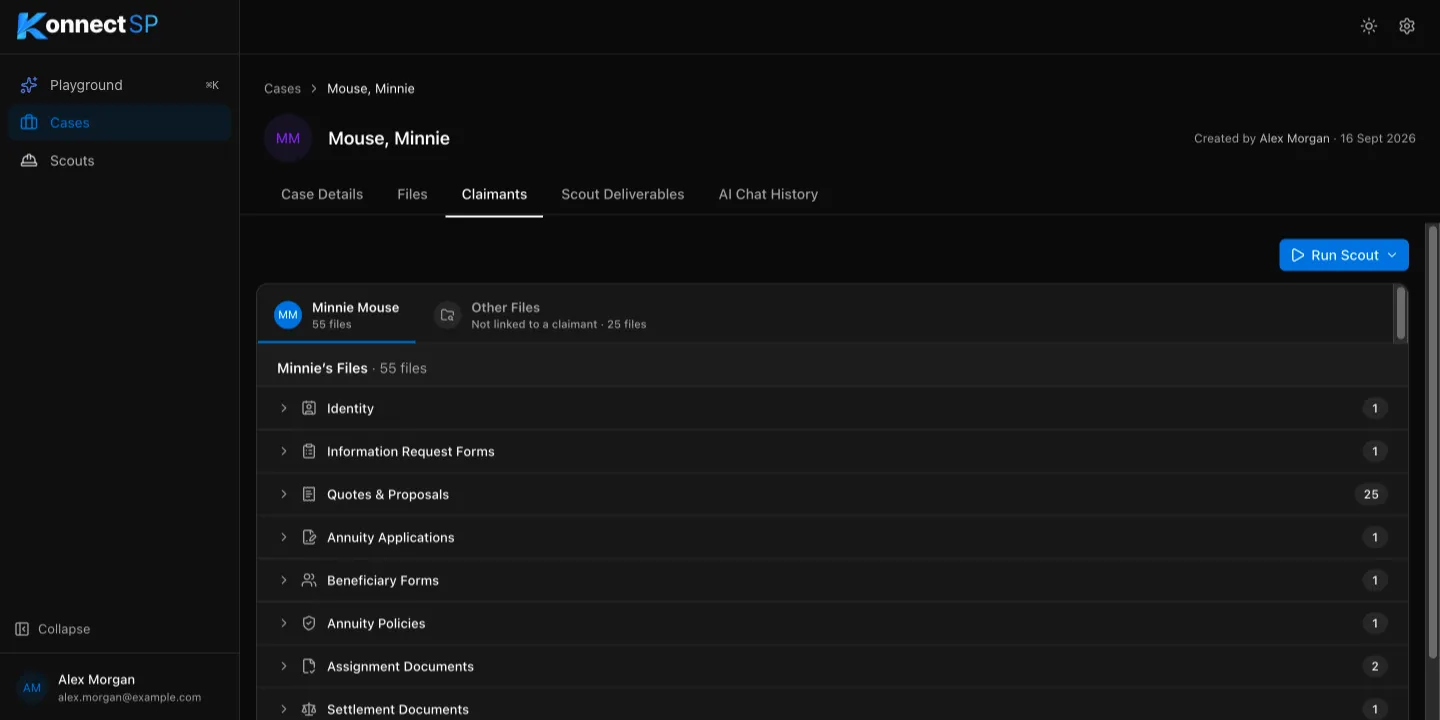
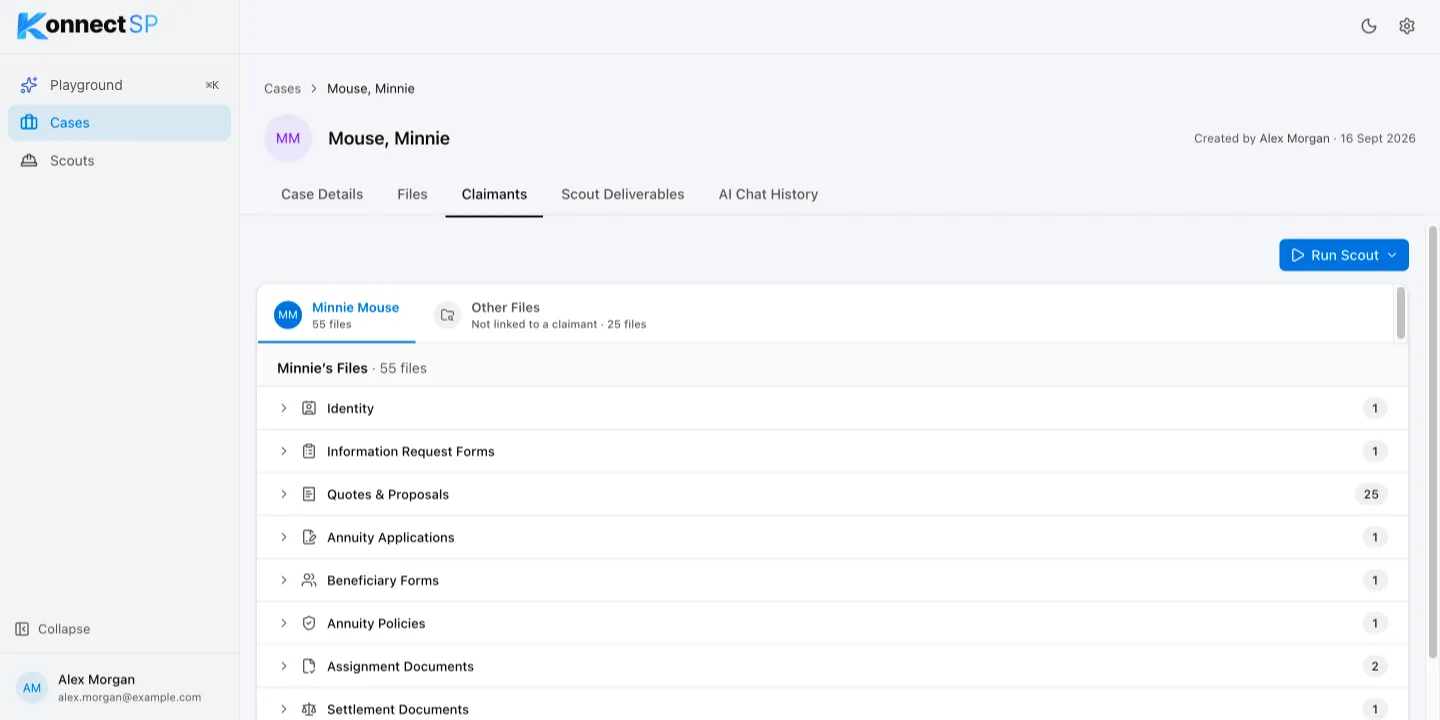
KonnectSP identifies the claimants in a case from its files and groups each person’s documents by type. Use the Claimants tab to check which documents you have and which are missing before you run a scout.
Review a claimant’s documents
Section titled “Review a claimant’s documents”- Open the case and go to the Claimants tab.
- Select a claimant’s name at the top of the list.
- Select a category, such as Quotes & Proposals or Annuity Policies, to see the files in it.
Documents are grouped into these categories: Identity, Information Request Forms, Quotes & Proposals, Annuity Applications, Beneficiary Forms, Annuity Policies, Assignment Documents, Settlement Documents, and Other Documents. A category appears when it has files, or when it is required and has no files.
Quotes and proposals
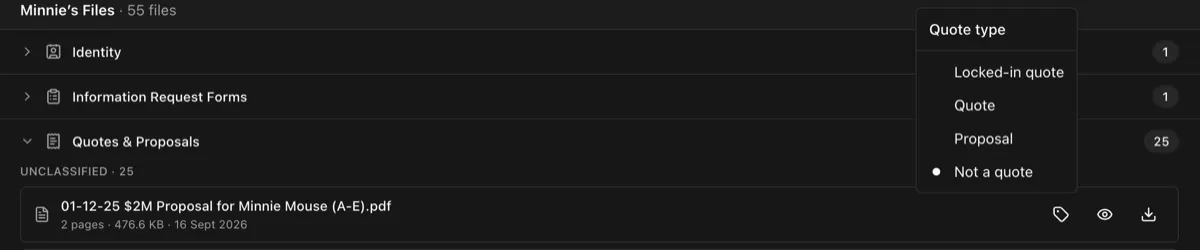
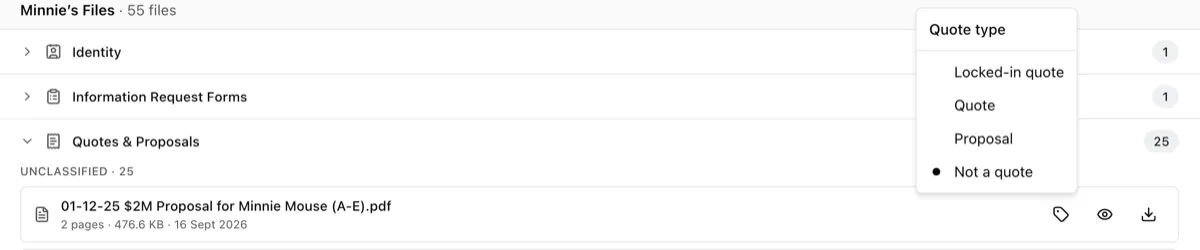
Section titled “Quotes and proposals”Quotes & Proposals groups a claimant’s quote files by type: locked-in quotes, quotes, and proposals. A locked-in quote is a quote whose rate the carrier has secured. The Funding Request scout uses locked-in quotes. Files that do not have a type yet appear under Unclassified.
To set or change a file’s type:
- In Quotes & Proposals, select the tag icon next to the file.
- Under Quote type, select Locked-in quote, Quote, Proposal, or Not a quote. KonnectSP updates the groups.
Missing documents
Section titled “Missing documents”If a required document type has no files, its category shows Documents are missing, and a warning icon appears next to the claimant’s name. Upload the missing document on the Files tab. KonnectSP updates the claimant’s categories after it reads the file.
Files not linked to a claimant
Section titled “Files not linked to a claimant”Files that do not belong to a specific person, such as funding instructions for the whole case, appear under Other Files.
Run a scout from this tab
Section titled “Run a scout from this tab”Select Run Scout to see the scouts you can run for the case and each claimant. See Run a scout.