
Case Detail Configuration
Case Detail Configuration controls the sections and fields on the Case Details tab and the New Case form. Changes apply to every case in your organization. Only admins can change the configuration.
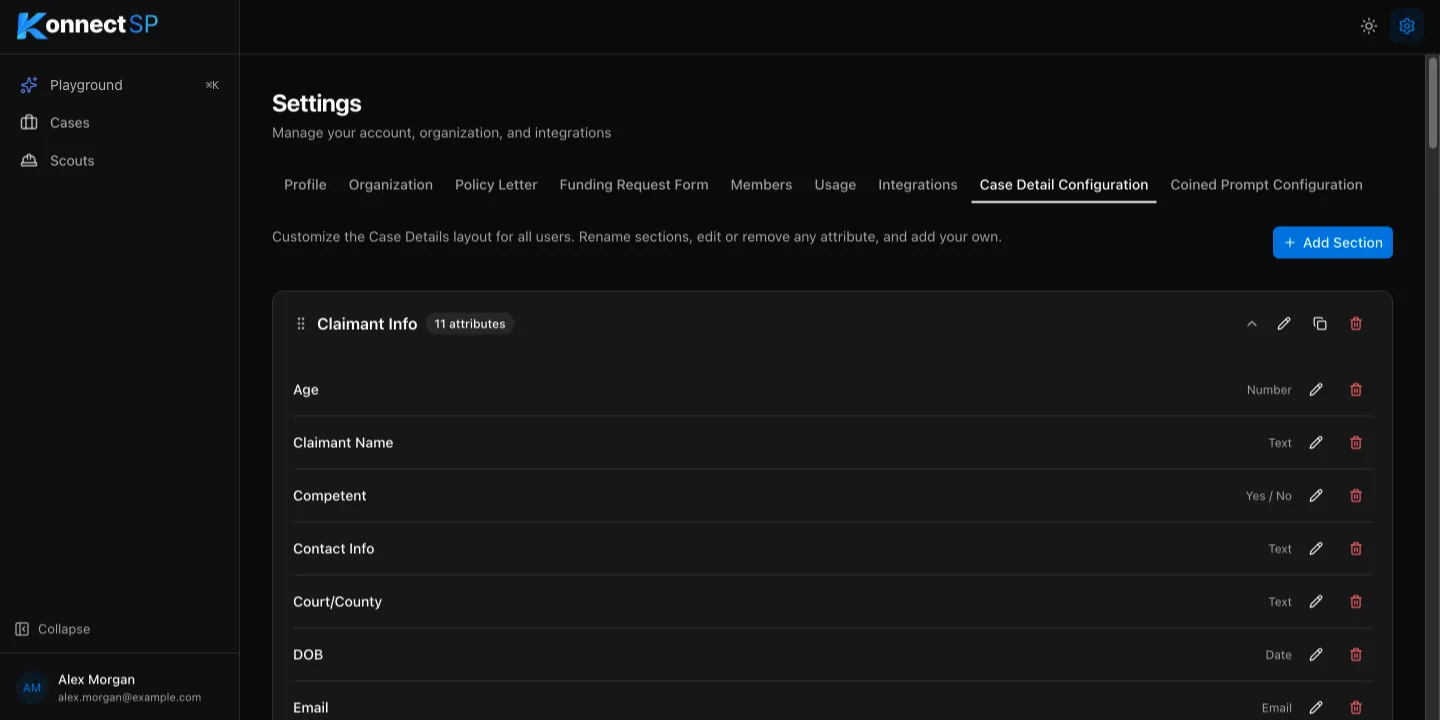
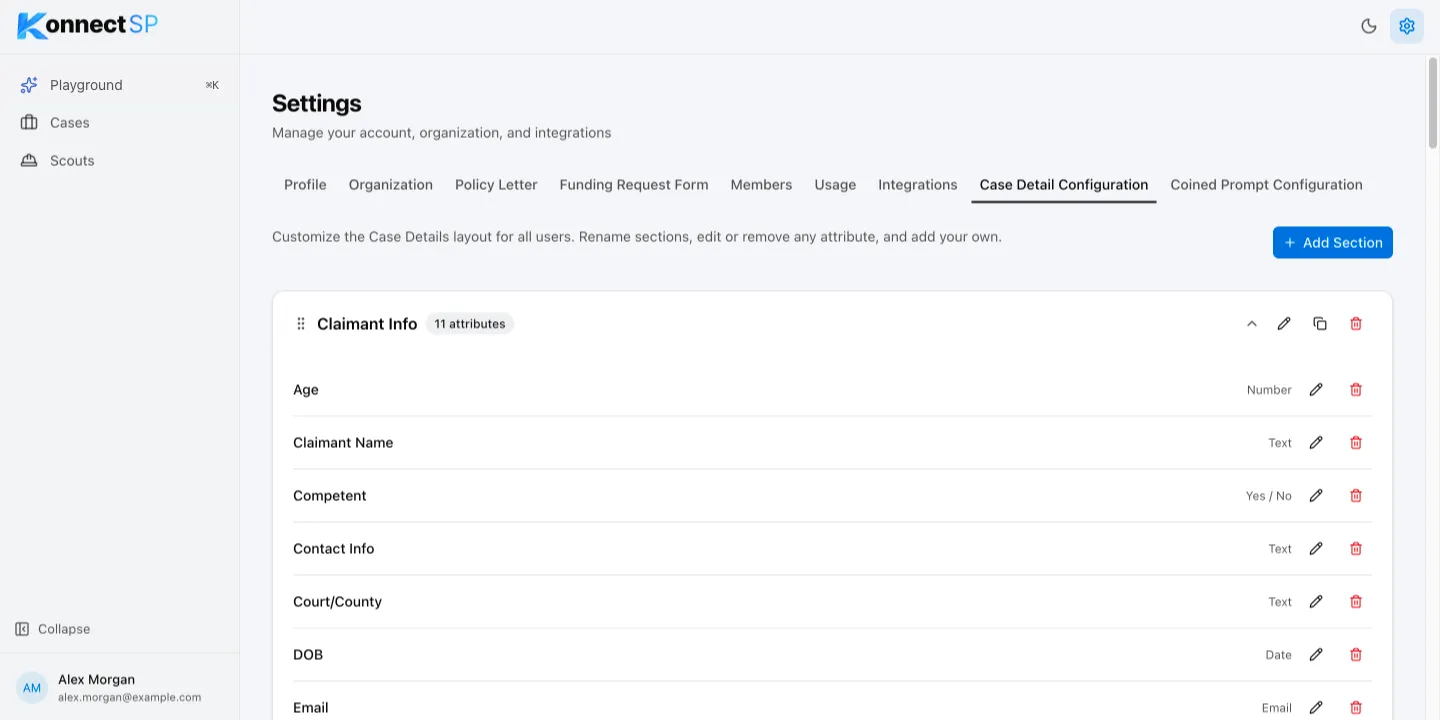
Add a section
Section titled “Add a section”- Go to Settings > Case Detail Configuration.
- Select Add Section.
- Enter a name for the section, then save it.
Add a field to a section
Section titled “Add a field to a section”- In the section, select Add Attribute.
- Enter a name and choose a type: Text, Textarea, Number, Currency, Date, Dropdown, Email, Phone, or Yes / No.
- For a dropdown, enter the options.
- Save the attribute.
Change or remove sections and fields
Section titled “Change or remove sections and fields”- To rename a section, select the pencil icon next to its name.
- To copy a section with all its fields, select the duplicate icon.
- To change a field, select the pencil icon next to it.
- To remove a section or a field, select its trash icon and confirm.
- To change the order of sections, drag a section by the handle to the left of its name.