
Run a scout
You can run a scout for one case from its Claimants tab, or for up to 4 cases at once from the Scouts page.
Run a scout from a case
Section titled “Run a scout from a case”- Open the case and go to the Claimants tab.
- Select Run Scout. The list shows each scout for the case and for each claimant.
- Select an available scout and follow the steps in the dialog.
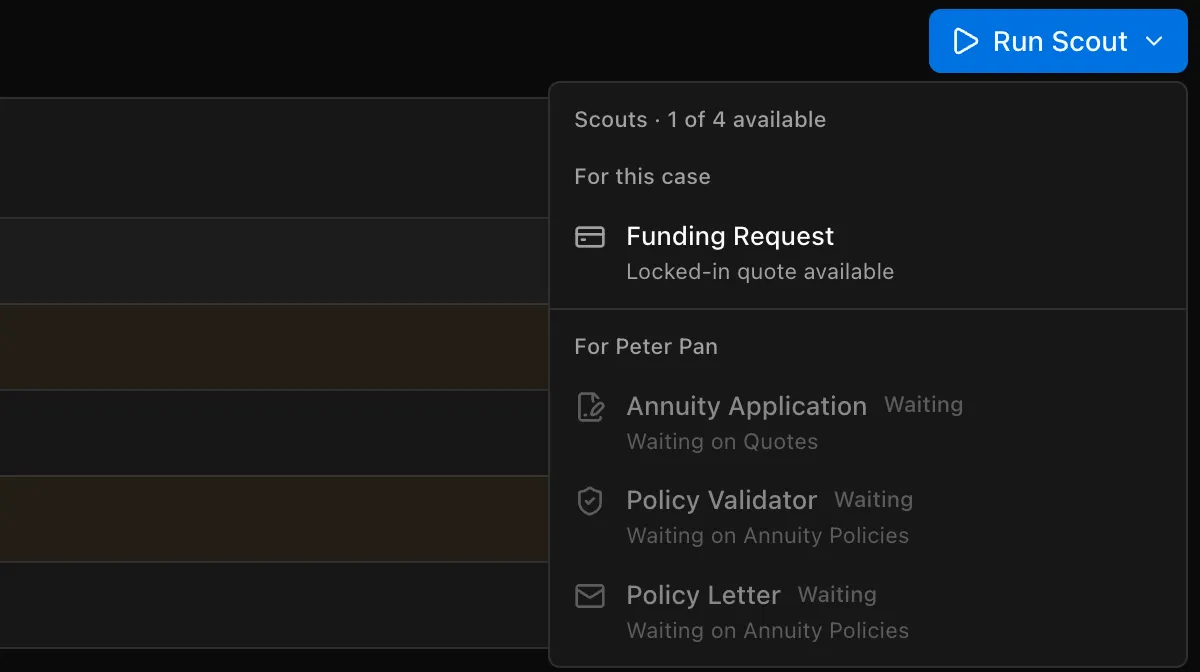
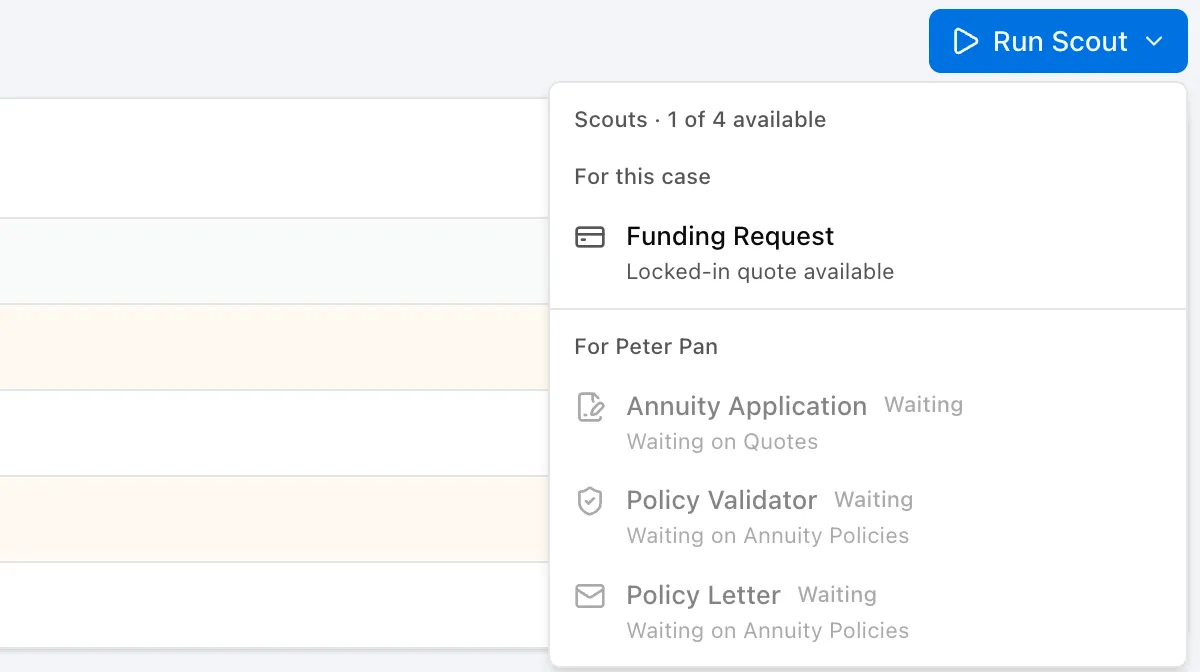
A scout marked Waiting needs a document the case does not have yet. The line under it names the missing document type, for example Waiting on Quotes.
Run a scout for several cases
Section titled “Run a scout for several cases”- In the sidebar, select Scouts.
- Select a scout.
- On Select Cases, select up to 4 cases, then select Next.
- Complete the scout’s remaining step, if it has one:
- Annuity Application Generator: on Select Templates, select the carrier applications to fill in (up to 17).
- Policy Letter Generator: on Select Signature, select who signs the letters.
- Funding Request Generator: on Details, select who signs the letters and, optionally, enter the defense attorney or adjuster for each case. See Funding requests.
- On Review & Start, check the scout, cases, and claimants, then select Start Scout.
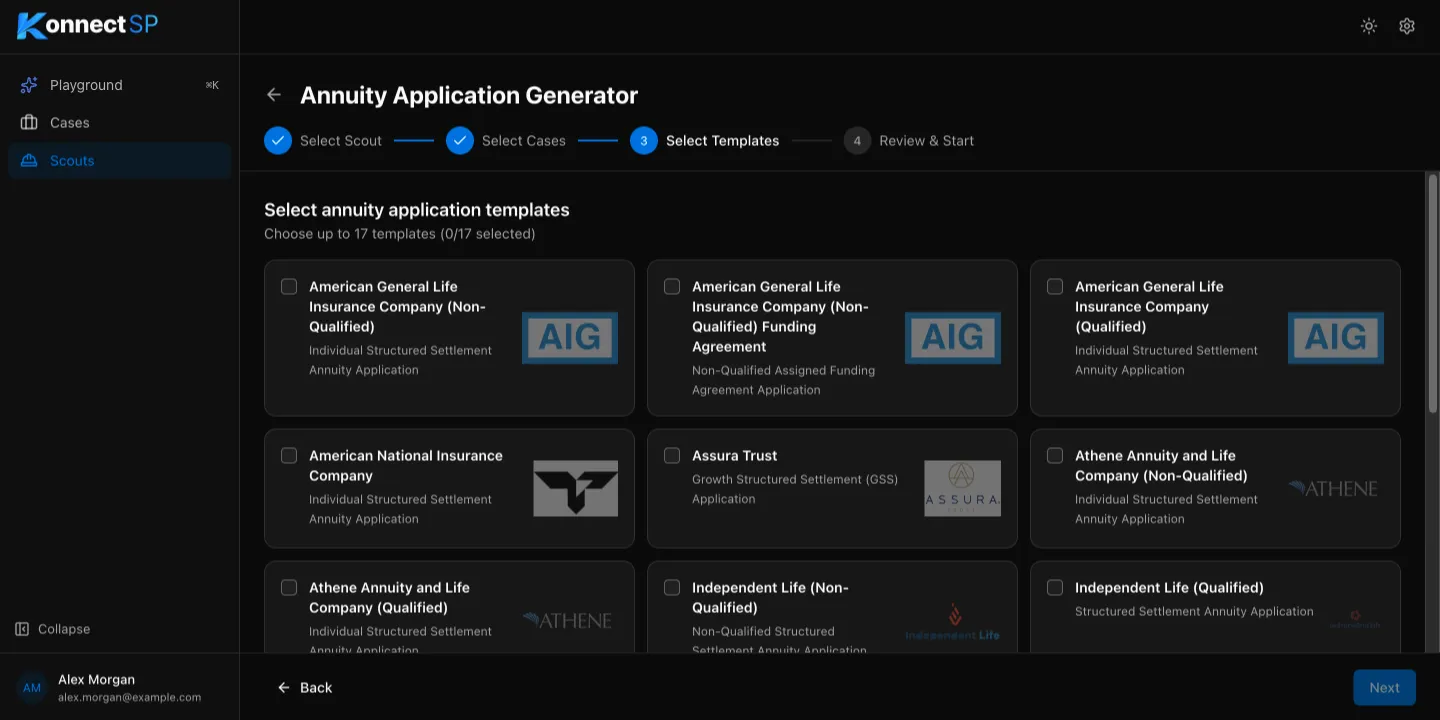
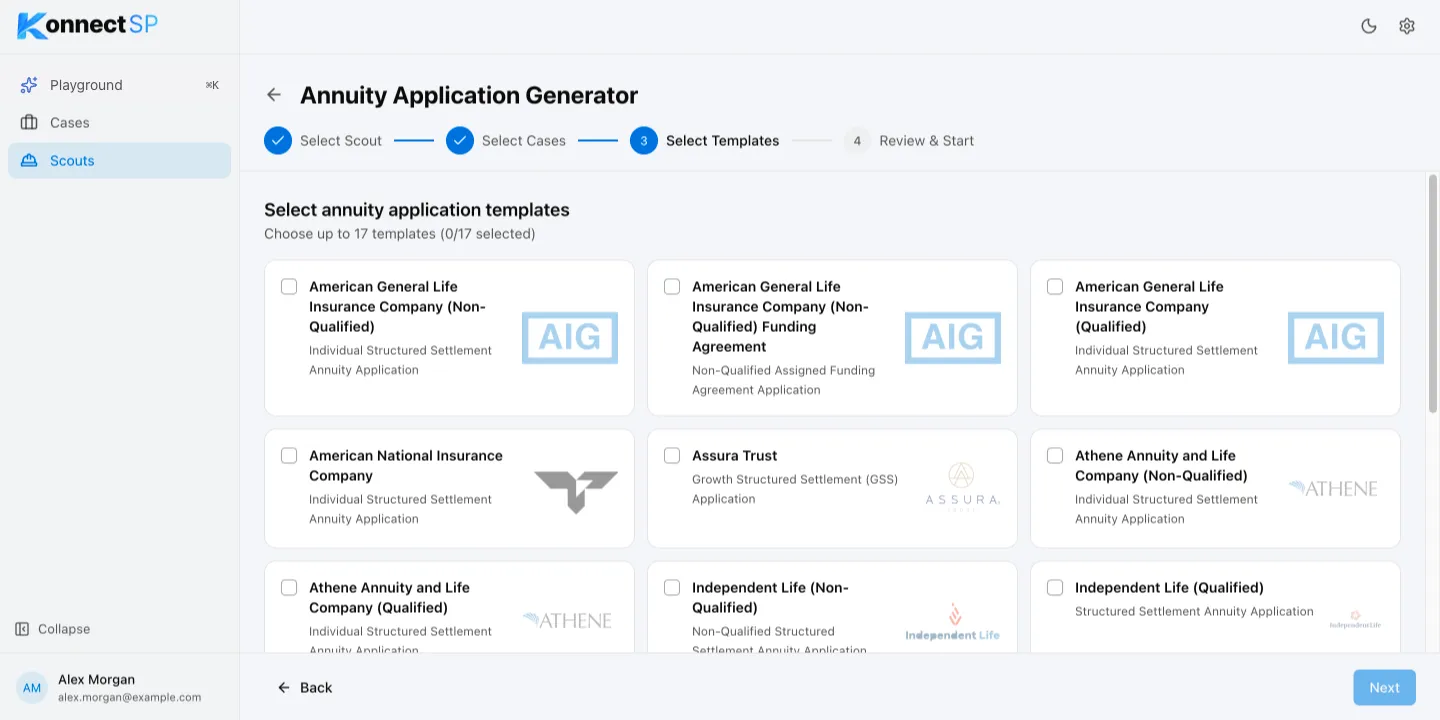
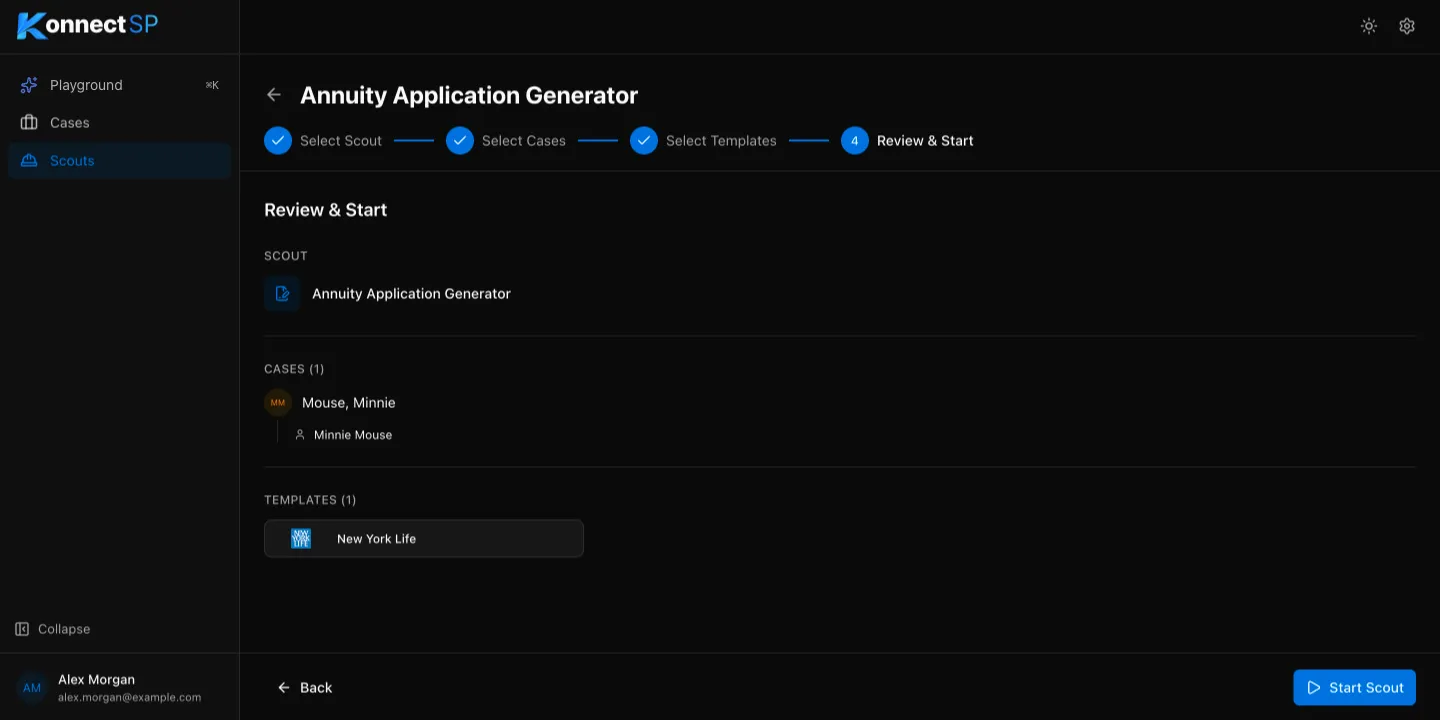
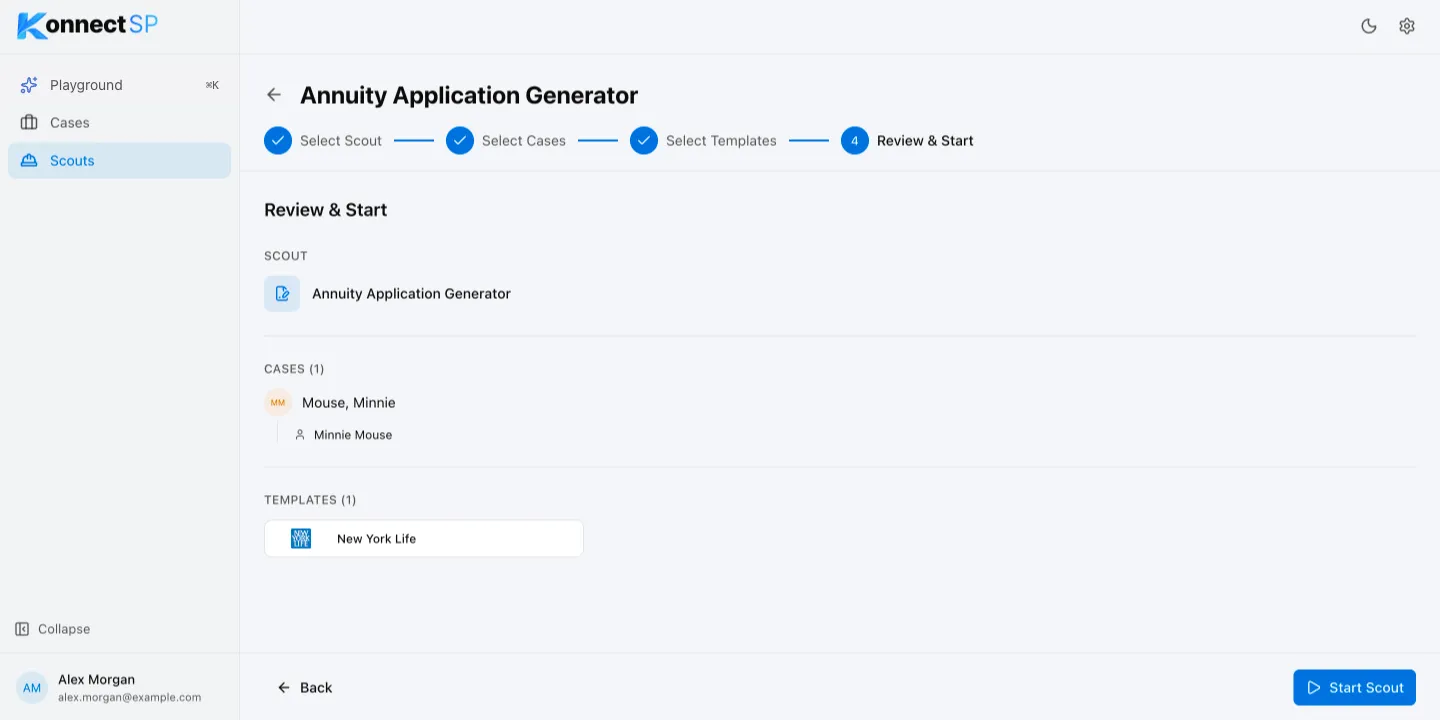
The scout runs in the background. Its result appears on the case’s Scout Deliverables tab. See Review deliverables.