
Upload and manage files
The Files tab holds every document for a case. After you upload a file, KonnectSP reads it and labels it with the type of document it contains, such as Information Request Form or Court Approval Order.
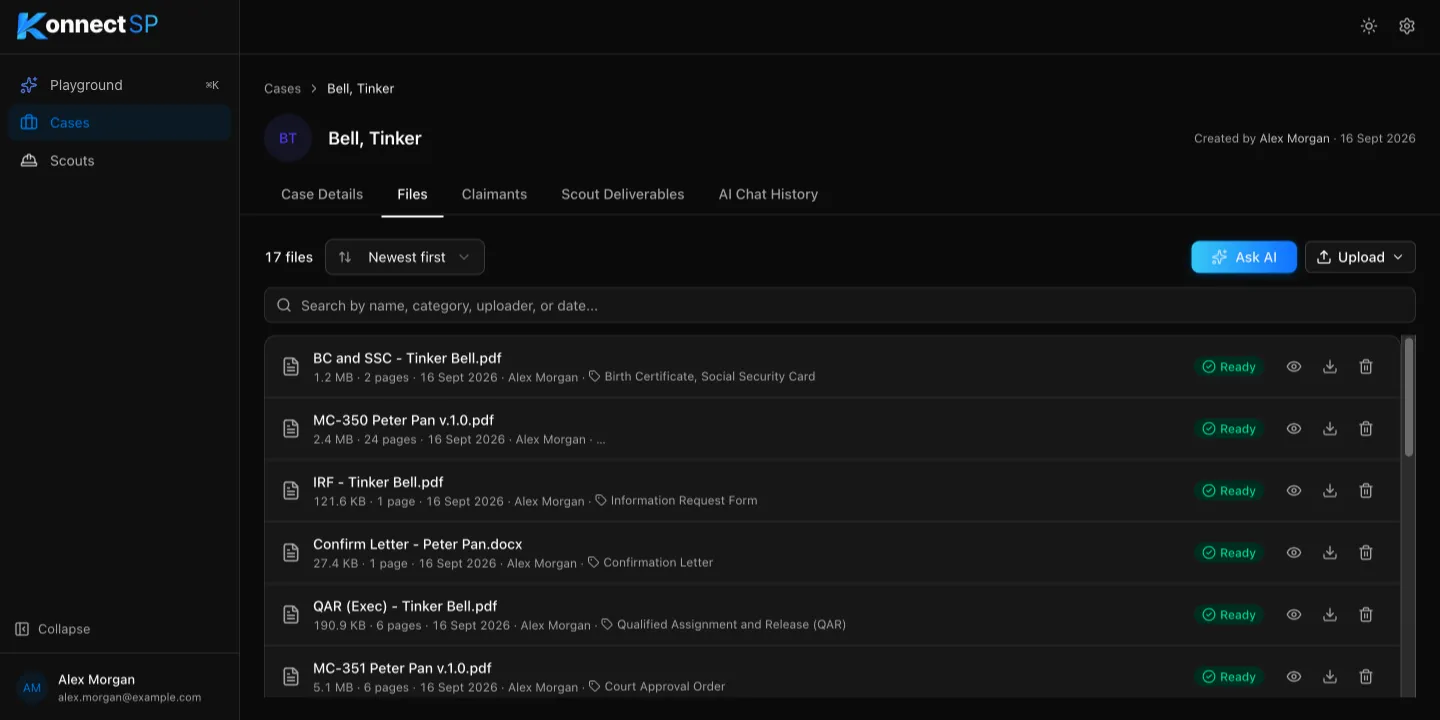
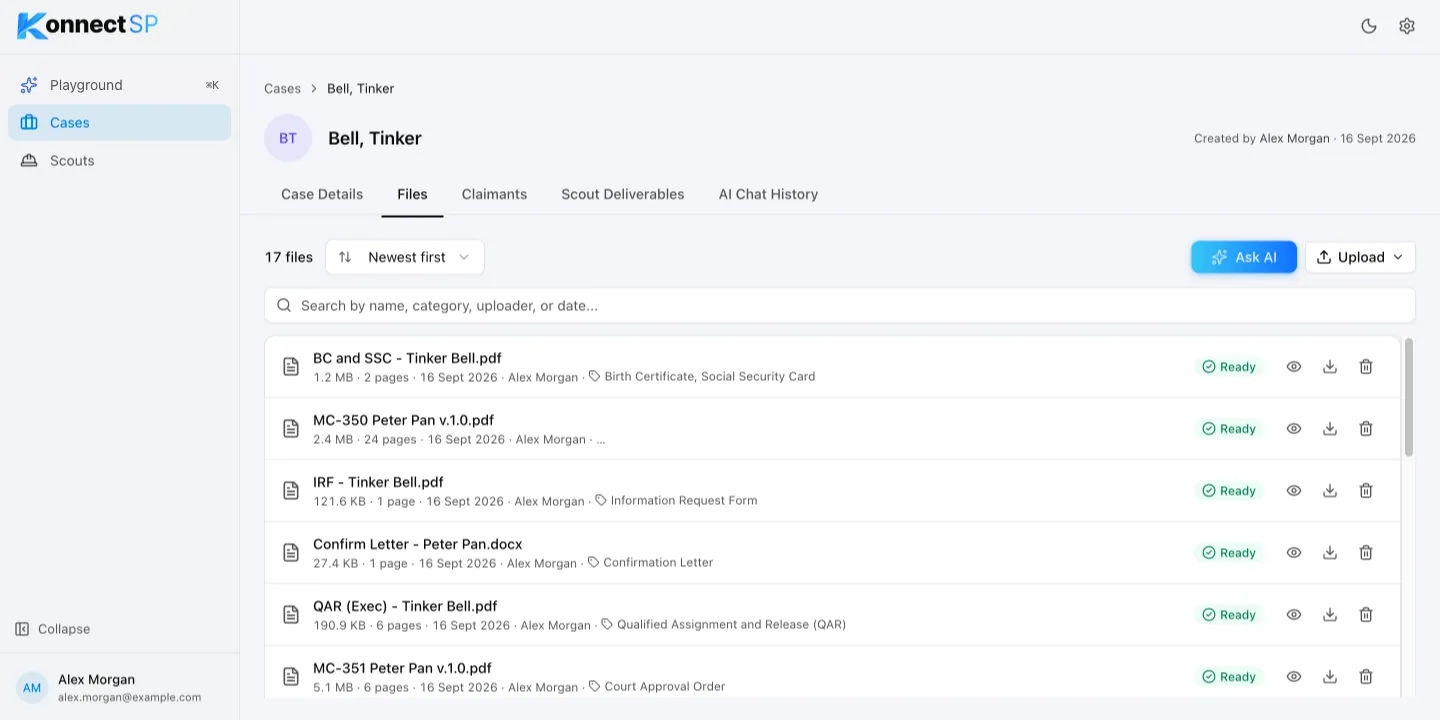
Upload files
Section titled “Upload files”- Open the case and go to the Files tab.
- Select Upload, then select Files or Folder.
- Choose the files or folder to upload.
You can also drag files onto the list.
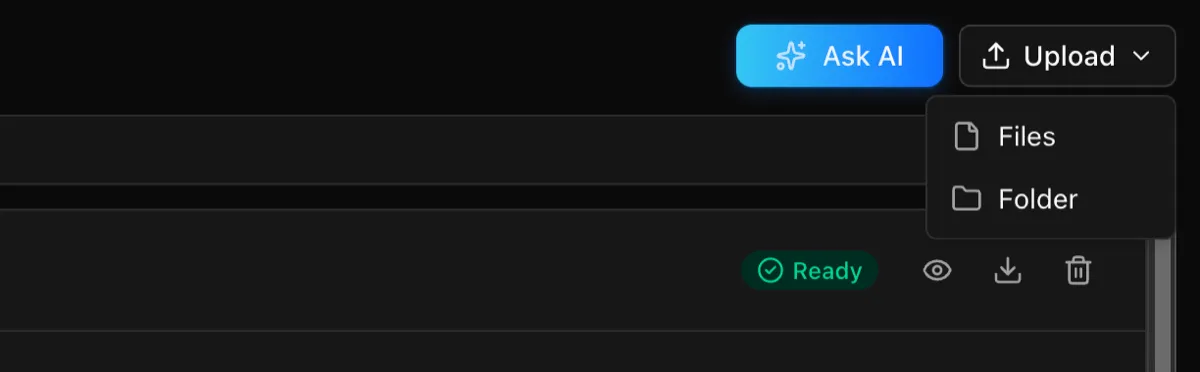
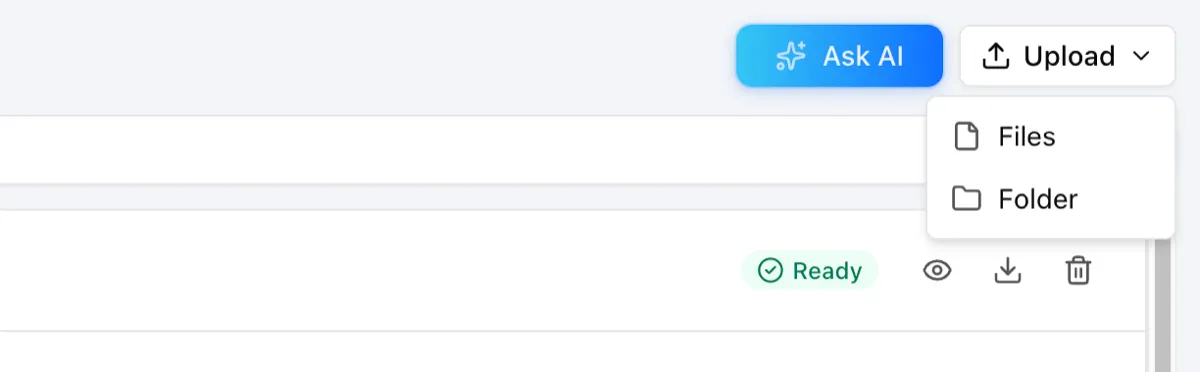
KonnectSP accepts PDF, Word (.doc, .docx), Excel (.xls, .xlsx), PNG, and JPEG files.
File status
Section titled “File status”| Status | Meaning |
|---|---|
| Processing | KonnectSP is reading the file. You cannot delete it until processing finishes. |
| Ready | The file is ready to use with scouts and Ask AI. |
| Not supported | The file is stored in the case, but KonnectSP cannot read its contents. Spreadsheets show this status. |
View, download, or delete a file
Section titled “View, download, or delete a file”Each file has three icons on the right:
- Select the eye icon to view the file.
- Select the download icon to save a copy.
- Select the trash icon to delete the file, then confirm.
Find a file
Section titled “Find a file”Enter a file name, document type, uploader, or date in the search box. To change the order, use the sort list next to the file count.