
Members
The Members tab lists everyone in your organization, with their role, status, and the date they joined. It also shows how many seats your plan has and how many are in use. Only admins can invite, change, or remove members.
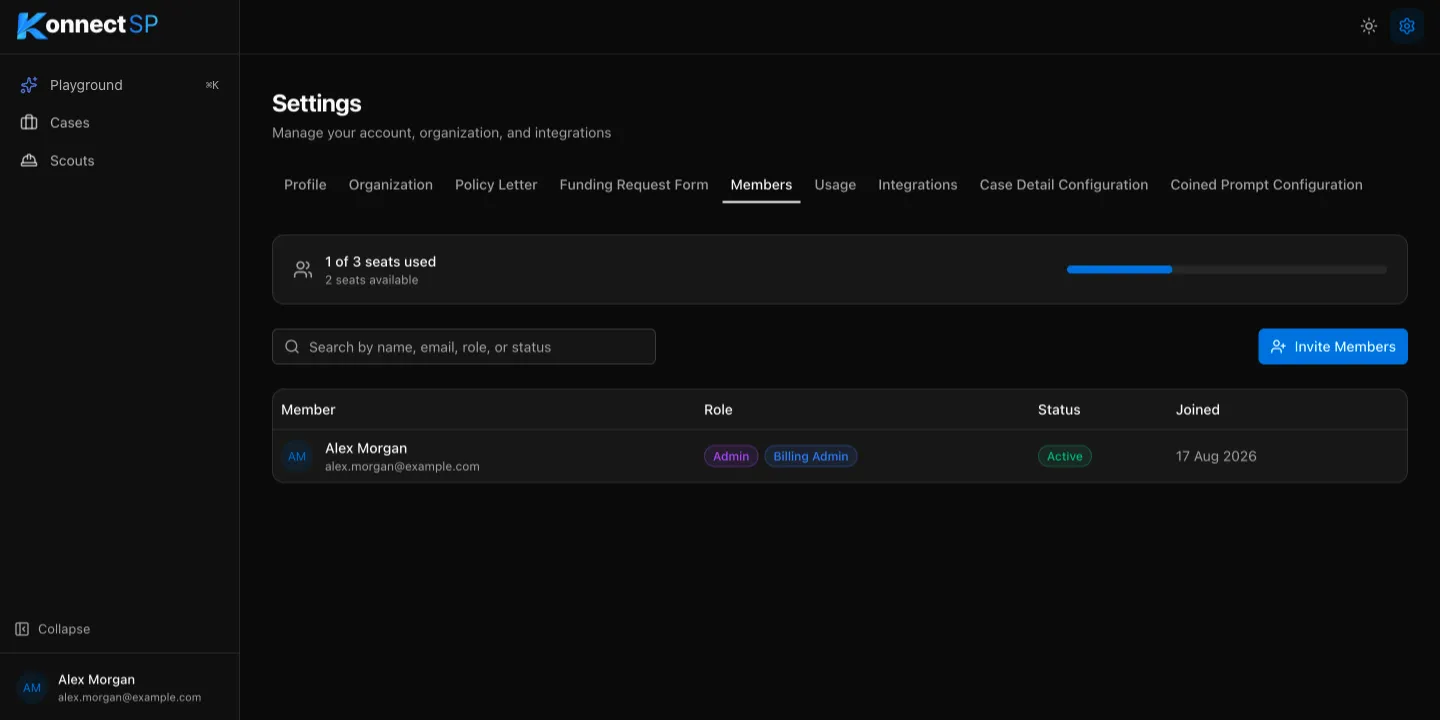
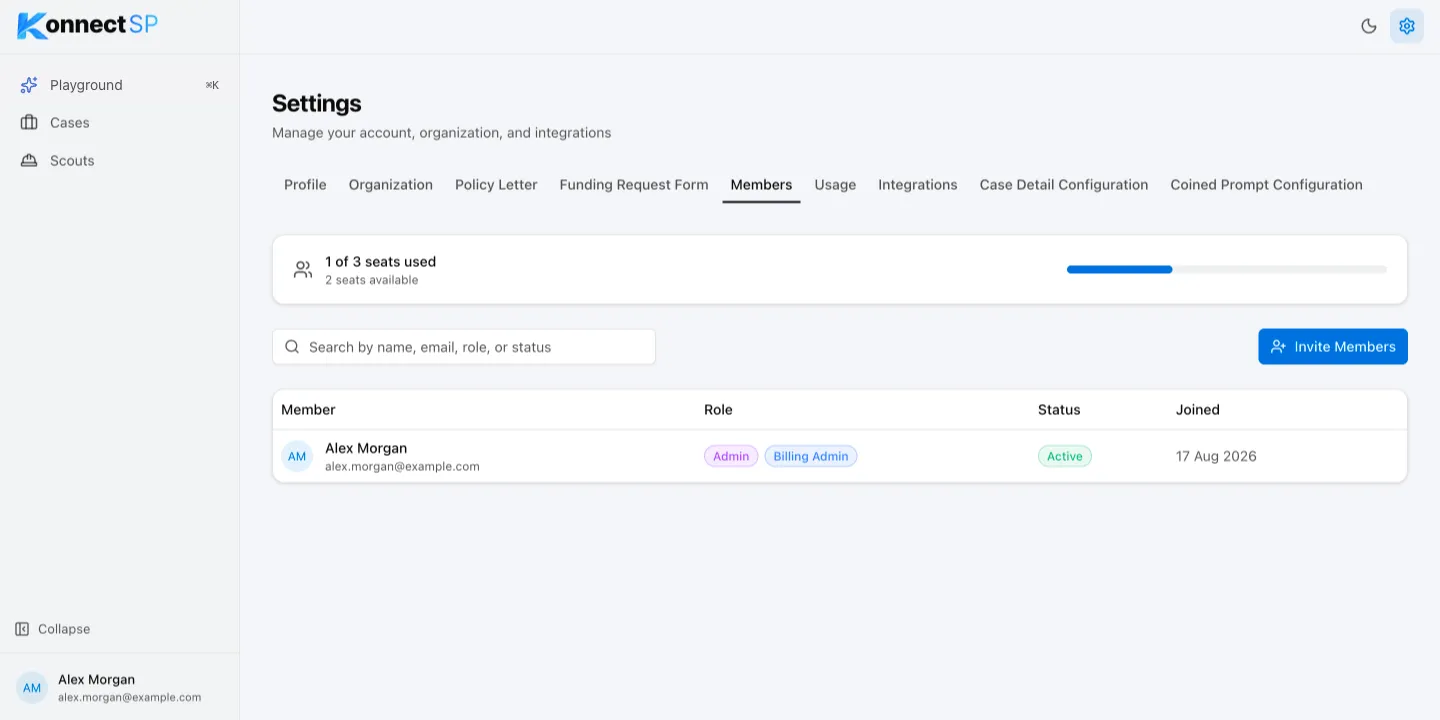
| Role | Can do |
|---|---|
| Admin | Everything a member can do, plus manage members, organization details, templates, integrations, case detail configuration, and coined prompts. Admins can see all cases. |
| Member | Create and work on cases, run scouts, and use Ask AI. |
Invite members
Section titled “Invite members”- Go to Settings > Members.
- Select Invite Members.
- In Email addresses, enter one or more work email addresses. Separate them with commas, spaces, or new lines.
- Select Send Invite.
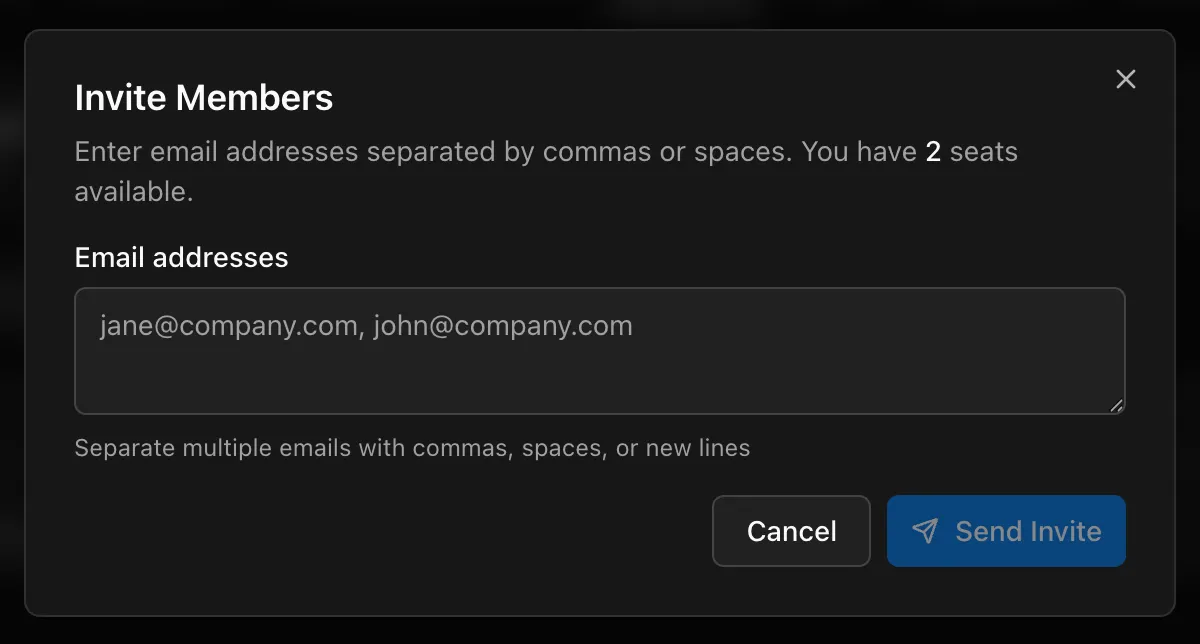
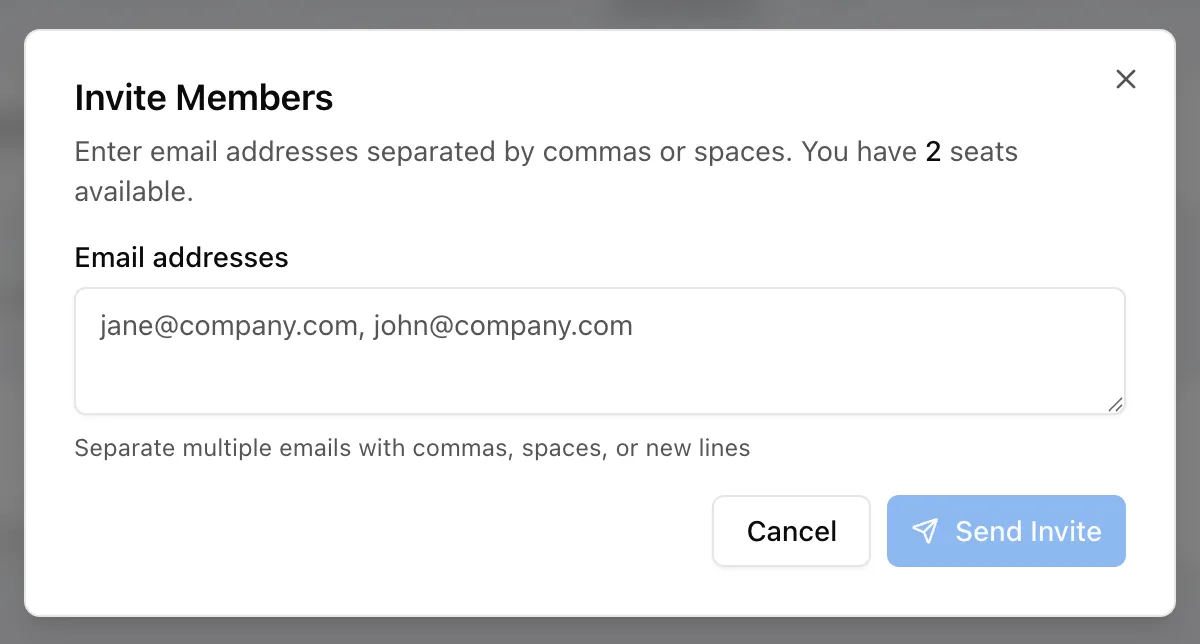
Each invitation uses one seat. If you need more seats, update your plan with Manage Subscription in Stripe on the Profile tab.
Change a member’s role or remove a member
Section titled “Change a member’s role or remove a member”- In the member list, open the actions menu for the member.
- Select Change Role and choose the new role, or select Remove and confirm.
A removed member can no longer sign in to your organization, and their seat becomes available.